
Losing a phone should never mean losing a medical history
Mediara Vault has no server, so there is no automatic cloud copy of your records. That is the point — and it makes a backup the single most important thing to set up on day one.
- Where backups go
- Two protection modes
- The recovery code
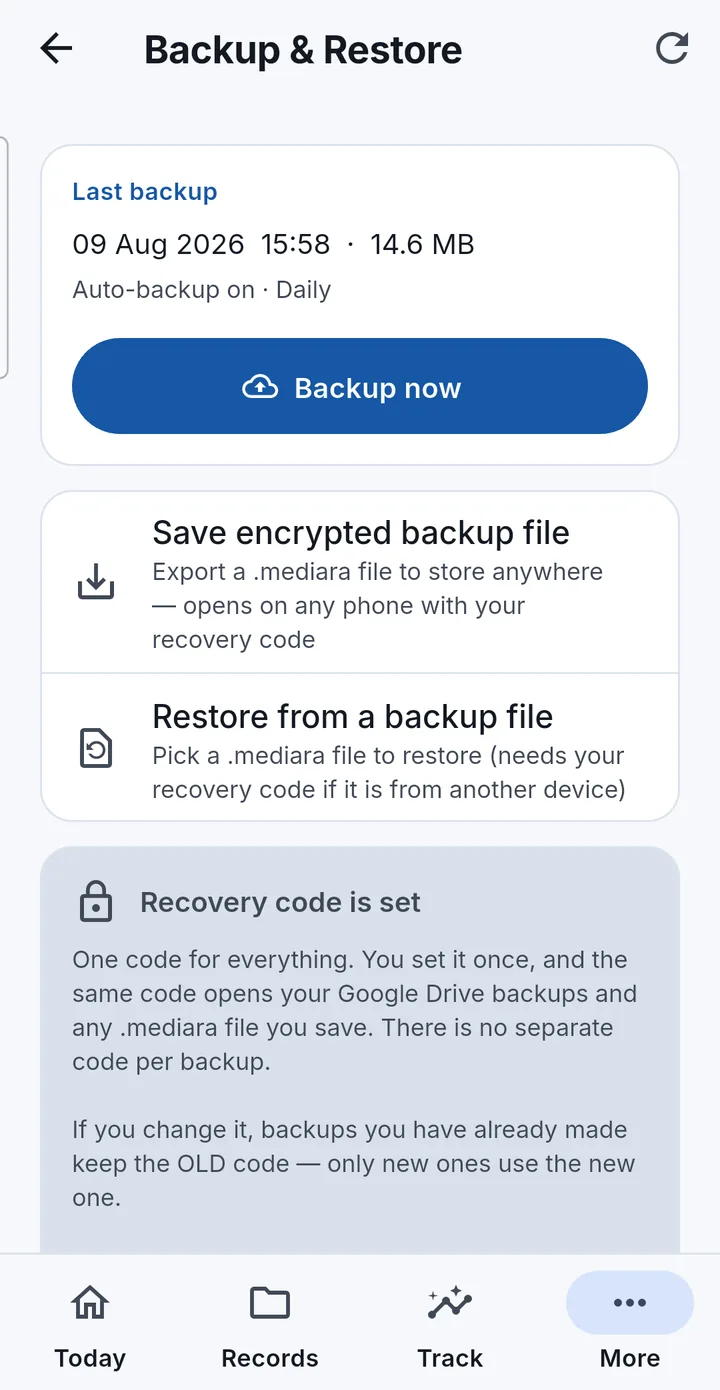
- How to back up
- How to restore
- What restores where
- What’s in a backup
- Deleting backups
- If something fails
Two places a backup can go
Whichever you pick, the archive is packaged and encrypted on your phone before anything moves. Only ciphertext ever leaves the device.
- Your own Google Drive. The archive goes into Drive’s hidden app folder — a private per-app area that does not appear in My Drive, in search, or in your file list. Mediara Vault can see only that folder; it cannot read the rest of your Drive. Needs a Google sign-in and a connection.
- An encrypted file you keep. Save encrypted backup file writes a
.mediarafile wherever you choose — internal storage, an SD card, another cloud app, a computer. Fully offline, no account needed.
You can use both. They are the same archive format and the same encryption.
Two protection modes — and the trade-off between them
Every backup is AES-256-GCM encrypted. What differs is who can decrypt it. The app asks you to choose, with an explicit acknowledgement the first time.
| Account protection | Recovery code | |
|---|---|---|
| To restore, you need | To sign in with the same Google account | Your recovery code |
| Nothing to remember | Yes | No — the code is the only way in |
| End-to-end encrypted | No | Yes |
| Could Google, or someone controlling your Google account, decrypt it? | Yes — the key is escrowed, encrypted, in your own Drive | No. Nobody can, including us |
| If you lose the key | Recover your Google account and the backup is reachable again | The backup is permanently unreadable. There is no reset |
| Best for | Convenience — a reliable path back after a lost phone | Maximum privacy, including against a compromised Google account |
Set or change the code in Settings → Security → Recovery code. Until one exists, the Backup screen shows a persistent card explaining why it matters.
Three things about the recovery code that surprise people
One code, not one per backup
You set it once. The same code opens your Drive backups and any .mediara file you save. There is no separate code per archive.
Changing it doesn’t re-key old backups
Each archive embeds the key wrap that was current when it was written. After a change, older backups still need the old code and only new ones use the new one. Take a fresh backup after changing it, and keep the old code until you are sure the older ones are no longer needed.
Length is not enforced
Only a four-character anti-typo minimum applies, so 1234 is accepted. The app shows a live strength meter and warns on a weak code, but never blocks you. A short code is genuinely quick to brute-force offline by anyone holding the backup file, so choose accordingly.
A .mediara file saved without a recovery code is sealed with a key held in that phone’s secure hardware, which never leaves it. It restores perfectly on that phone — and cannot be opened by anything if the phone is lost or reset. The app warns you at the moment you write such a file and offers to set a code first. Set a recovery code before relying on exported files as your off-device copy.
How to back up
- Open More → Backup & Restore (also reachable from Settings).
- The first time, connect Google if you want Drive backups, then choose your protection mode.
- Tap Backup now. Or, for a fully offline copy, tap Save encrypted backup file and pick where the
.mediarafile goes.
Backups also happen on their own:
- The first one runs right after onboarding, if Google is connected.
- On your auto-backup schedule — manual, daily or weekly — which runs when you open the app.
- An extra safety backup after a burst of ten or more changes in one session.
Retention keeps the newest 3, 5 or 10 archives, your choice, with a default of 5. Older ones are pruned. Backups count against your own Google Drive storage quota.
Backups are never limited by your plan. Not the frequency, not the size, not what they contain. In the app’s own code the backup, restore, reminder and Recycle Bin modules are forbidden from importing the billing layer at all, and a test fails the build if any of them does — so they cannot behave differently for a paying user, by construction rather than by promise.
How to restore
On a new or reset phone
- Install Mediara Vault and start onboarding.
- Choose Continue with Google. The app looks in your Drive app folder and lists what it finds.
- Tap Restore from backup, and enter your recovery code if that backup is code-protected.
Inside the app, later
Backup & Restore → tap a backup → Restore all, or restore a single profile (per-profile restore is same-device only). The app stages the data, verifies it, and applies it on the next launch — so it asks you to close and reopen.
From a file
Backup & Restore → Restore from a backup file, then pick the .mediara file. Files saved as .medvault before the app was renamed still restore — the import reads the content, not the extension.
Data is staged and verified before anything is replaced, and a failed apply rolls back completely — your existing data is never left half-replaced. A wrong recovery code is reported as a wrong code and re-prompted, not as a corrupt file. A backup written by a newer version of the app is refused with a clear “update the app” message rather than restored badly.
Restoring is never gated. It works in read-only mode too — the backup and restore code is forbidden from knowing whether you have a subscription, and a test fails the build if that changes. See what read-only means.
What restores where
| What you have | Restores on this phone? | Restores on a new phone? |
|---|---|---|
| Drive backup, code-protected | Yes | Yes — with the recovery code. Self-contained: the key travels inside the file |
| Drive backup, account-protected | Yes | Yes — signed in to the same Google account. The key is escrowed in your Drive |
.mediara file, recovery code set | Yes | Yes — with the code. Independent of Drive entirely |
.mediara file, no recovery code | Yes | No. It is locked to this phone’s key, which never leaves the device |
| Deleted from Drive, no other copy | No | No. There is no second copy anywhere — the same design that stops anyone else reading them |
What is inside a backup
The complete vault: all profiles, all records, all documents and photos, settings and Care-Mode data. Backups are versioned so a mismatch is reported rather than restored badly.
Alongside the encrypted archive, Drive holds a small amount of unencrypted metadata so the restore screen can list your backups before decrypting anything: the date, the format version, and a count of profiles. The profile names themselves are encrypted.
Deleting backups
- One backup: in the app, Backup & Restore → the bin icon beside it. It is removed from Drive immediately, and nothing on the phone is touched.
- All of them at once: Google Drive app or drive.google.com → Settings → Manage apps → Mediara Vault → Delete hidden app data.
You will not find these files by browsing Drive, and that is deliberate. They live in the private app-data folder, which does not appear in My Drive, in search, or in your file list. Only Mediara Vault and Drive’s Manage-apps screen can see it — which is why nothing in your Drive looks like a backup.
“Delete hidden app data” removes every backup at once, permanently. Drive backups exist only there; there is no second copy. If you want to keep something first, use Save encrypted backup file to write a .mediara export you control, then delete.
Full instructions for deleting your data
If something fails
“Connect Google” keeps showing, or sign-in errors
Re-connect from Backup & Restore → Connect Google. If your Google password changed recently, the sign-in has to be refreshed. Corporate or child-managed accounts can block third-party Drive scopes entirely — try a personal account.
The backup failed with a network error
Retry on Wi-Fi; Drive uploads are resume-safe. Also check that your Google Drive is not out of quota — backups count against your Google storage.
“Couldn’t verify the backup — nothing changed. Try again.”
That is a transient storage hiccup during the app’s own self-verification step. Nothing was written, and retrying is safe.
“The recovery code you entered does not match this backup”
It is the wrong code for that archive. Codes are not interchangeable across a change — try the code that was active when that backup was made. If you have changed the code since, older backups still need the old one.
I forgot my recovery code. Can support reset it?
No, and by design — that is what the end-to-end encryption guarantee means. While you still have the phone with your data on it, set a new code in Settings → Security → Recovery code and take a fresh backup. Account-protected backups are unaffected by a lost code.
A .mediara file won’t import
Make sure it is the file itself rather than a cloud placeholder — download it fully first. Legacy .medvault files are accepted. If the file is code-protected, the original code is required.
Before you uninstall, reset or sell a phone, confirm a current backup exists. And when you change phones, restore on the new device before wiping the old one — that is the only way to find out that the backup works while you still have an alternative.
Set it up once. Then stop thinking about it.
Auto-backup runs on your schedule when you open the app, and keeps your newest 3, 5 or 10 archives.
Mediara Vault is a personal record-keeping app. It does not diagnose, treat or give medical advice, and it is not a substitute for talking to a healthcare professional. In an emergency, call your local emergency number. Read the full medical disclaimer.